3 Build Management and Continuous Integration
The software must be eventually released, i.e. distributed outside the development activity, both internally – e.g. for testing – and to customers.
Build management concerns how software is constructed, using the appropriate configuration data, into a software package for delivery to a customer or other recipient such as a team performing testing (“Guide to the Software Engineering Body of Knowledge” 2024).
The build management is usually automated though tools such as make, ant, maven, gradle. In the context of Java applications the two most used build automation tools are Maven and Gradle.
In continuous integration (CI), software building is performed automatically when changes are committed to the repository. Tools monitor the project’s repository and initiate a pipeline of steps to be undertaken every time a change iscommitted to a particular branch. This behavior may be combined with steps to validate coding standards via automated static analysis, execute unit tests and determine code coverage metrics, or generate documentation from the source code.
3.1 Maven

Maven is a build automation and project management tool designed to standardize how Java projects are built, tested, and deployed. Maven automates repetitive tasks such as compiling code, downloading dependencies, packaging applications, and running tests—all with a few simple commands. It makes the build process easy by providing a uniform build system and encouraging better development practices.
Maven automates the key phases of the build process:
- Compiling Java source code into bytecode.
- Running unit tests to verify correctness.
- Packaging the compiled code into JAR or WAR files.
- Deploying the resulting artifacts to local or remote repositories.
For instance with the following command it is possible to clean possible old files, compile the coce, run the tests and install the package in a local repository, available to ather project that would need it:
mvn clean installMaven is based on the following basic principles:
Convention over configuration: Maven assumes a standard project structure and common naming conventions, so you don’t need to specify every detail. The default for a project also includes the lifecycles and the relative plugins.
Declarative execution Instead of writing scripts that describe how to build your project, Maven uses a declarative approach: the
pom.xmlconfiguration file describes what the project is and what it needs. Such information is used to perform the correct build steps.Dependency Management Maven automatically downloads required libraries (and their dependencies) from online repositories. Dependencies are declared in the
pom.xmland Maven ensures they are available during compilation, testing, and runtime.Lifecycle Management Every Maven build follows a defined lifecycle, a sequence of standard phases like compile, test, package, and install. Running one command (e.g., mvn package) triggers all necessary earlier phases in order.
Plugin Architecture Almost all Maven functionality is provided through plugins. Each plugin performs a specific task.
Reproducibility Because everything – dependencies, versions, and build instructions – is explicitly defined in
pom.xml, anyone can reproduce the same build on any machine. This makes projects portable, reliable, and easy to integrate into automated build systems.
3.1.1 Project structure
Maven works assuming a standard directory layout for projects:
- root folder contains the
pom.xmlconfiguration file and other general files, - the
srcfolder contains the source files and the resources, - the
targetfolder will contain the results fo the build process.
The root foder usually includes a README.md that, by default, is rendered by the repository web portals on the initial page.
A more complex project uses the following structure:
| Folder | Description |
|---|---|
src/main/java |
Application/Library sources |
src/main/resources |
Application/Library resources |
src/main/filters |
Resource filter files |
src/main/webapp |
Web application sources |
src/test/java |
Test sources |
src/test/resources |
Test resources |
src/test/filters |
Test resource filter files |
src/it |
Integration Tests (primarily for plugins) |
src/assembly |
Assembly descriptors |
src/site |
Site |
pom.xml |
The project object model with configuration |
LICENSE.md |
Project’s license |
NOTICE.md |
Notices and attributions required by libraries that the project depends on |
README.md |
Project’s readme |
Maven also adopts a standard naming conventions where the name of the component is followed by a - (dash), the version number, and the extension. E.g., commons-logging-1.2.jar vs. commons-logging.jar
Please note that the course adopts a simplified structure for the base projects.
The main benefits of a standard project layout are:
- consistency: every project looks the same, making it easy to navigate unfamiliar codebases;
- automation: Maven automatically knows where to find and put files thus leveraging convention over configuration;
- portability: continuous integration tools (e.g., Jenkins, GitHub Actions, GitLab Pipelines) can build any Maven project without additional configuration.
3.1.2 Lifecycle
Maven organizes the build process into a series of lifecycles, which are structured sequences of phases that define what happens and in what order during a build. A lifecycle is an ordered sequence of phases, Maven defines three standard lifecycles:
- default lifecycle
mvn build - clean lifecycle
mvn clean - site lifecycle
mvn site
Each lifecycle can be run independently (e.g., mvn clean, mvn site) or combined (e.g., mvn clean install).
The default build lifecycle is made up of the following main phases:
validate: validate the project is correct and all necessary information is availablecompile: compile the source code of the projecttest: test the compiled source code using a suitable unit testing framework. These tests should not require the code be packaged or deployedpackage: take the compiled code and package it in its distributable format, such as a JAR.verify: run any checks to verify the package is valid and meets quality criteriainstall: install the package into the local repository, for use as a dependency in other projects locallydeploy: done in an integration or release environment, copies the final package to the remote repository for sharing with other developers and projects.
The phases of the other lifecycles are:
The Clean lifecycle is used to clean the workspace by deleting generated files (e.g., compiled classes, JARs) in the target/ directory:
- Pre-clean: preparation before clearning,
- Clean: deletes output files,
- Post-clean: possible tasks performed after cleaning.
The Site lifecycle generates project documentation, reports, and a website using project metadata:
- Pre-site: prepare documentation resources;
- Site: generates documentation (HTML reports, dependency graphs, etc.);
- Post-site: perform follow-up tasks,
- Site-deploy: publish the generated site to a server.
Maven can be invoked passing the name of a lifecycle (e.g. mvn build), in that case all the phases of the lifecycle are executed in orded.
It is also possible to invoke maven with the name of a phase (e.g., mvn test), in this case it will first execute all preceding phases in the lifecycle in order, ending with the phase specifiedon the command line.
An example usage of Maven invocation:
mvn clean installThis is the most common Maven command for building and installing a project locally:
- uses the
cleanlifecycle to remove old build files. - executes the
defaultlifecycle phases from the first up to theinstallphase
There can be goals can be attached to a lifecycle phase. As Maven moves through the phases in a life cycle, it will execute the goals attached to each particular phase
3.1.3 POM
Everything in Maven is defined in a declarative fashion using Maven’s Project Object Model (POM) that is defined in the pom.xml file.
The pom.xml file contains the configuration and the metadata for the project. It replaces the need for complex build scripts by providing a declarative description of the project’s structure and requirements. Maven uses the information in this file to:
- identify the project uniquely (through group and artifact identifiers).
- locate and manage dependencies.
- bind plugins to lifecycle phases.
- define build options, reporting tools, and repositories.
The basic structure of pom.xml is as follows
<project xmlns="http://maven.apache.org/POM/4.0.0"
         xmlns:xsi="http://www.w3.org/2001/XMLSchema-instance"
         xsi:schemaLocation="http://maven.apache.org/POM/4.0.0 https://maven.apache.org/xsd/maven-4.0.0.xsd">
    <modelVersion>4.0.0</modelVersion>
    <groupId>it.polito.oop.samples</groupId>
    <artifactId>samples</artifactId>
    <version>0.0.1-SNAPSHOT</version>
    <packaging>jar</packaging>
    <name>OOP Samples</name>
    <description>Sample code for the OOP Course</description>

    <properties>
        <!-- Property definitions go here -->
    </properties>

    <build>
        <plugins>
        <!-- Plugin definitions go here -->
        </plugins>
    </build>

    <dependencies>
        <!-- Dependency definitions go here -->
    </dependencies>

</project>
The mandatory elements, in addition to the initial <project> tag with the relative namespace declarations, are:
modelVersion: Specifies the POM model version and is always4.0.0for modern Maven files,groupID: defines the id of the group, it is typically linked to a company or a unit of the company, it often corresponds to the Java package (or prefix of the packages) of the project, conventionally it follows the reverse internet name convention;artifactID: the name of the project;version: the current version number of the project.
Other optional – i.e., with a conventional default – parameters are:
packaging: defines the output type (jar,war,pom, etc.).nameanddescription: contain human-readable metadata.
The file may contain other additional sections:
<properties<: defines reusable variables, such as Java version or encoding.<dependencies>: lists external libraries required for the build.<build>: contains configuration for plugins, build directories, and output settings.<repositories>: declares additional locations to fetch dependencies from.
The <dependendencies> block lists the libraries that are required by the project either for compilation or any other phase. In the above example the library junit-jupiter provided by org.junit.jupiter is mentioned, which is used to compile and run JUnit tests.
3.1.4 Dependencies
Dependencies define the external libraries your project needs to compile, test, or run.
Instead of manually downloading .jar files and managing paths, Maven automatically retrieves them from repositories based on the details provided in the <dependencies> section..
Example structure of dependency declaration:
<dependencies>
  <dependency>
    <groupId>group</groupId>
    <artifactId>artifact</artifactId>
    <version>version</version>
  </dependency>
</dependencies>
A dependency is described by three key identifiers:
groupId: the organization or project the library belongs to,artifactId: the name of the library,version: the specific version to use,scope: determines when the specific dependency is made available in the classpath.
For instance, to include JUnit 5 as your testing framework, you can add the following dependency:
- 1
-
the version
5.10.0of theorg.junit.jupiter:junit-jupiterartifact includes the full JUnit 5 API and engine. - 2
-
the
testscope means JUnit will be available only during the testing phase, not in production builds.
Maven defines six distinct scopes for the dependencies:
- compile (default) these dependencies are available in all classpaths of a project.
- provided indicates you expect the JDK or a container to provide the dependency at runtime1. Such dependencies are added to the classpath used for compilation and test, but not the runtime classpath.
- runtime indicates that the dependency is not required for compilation, but is for execution. Maven includes a dependency with this scope in the runtime and test classpaths, but not the compile classpath.
- test indicates that the dependency is not required for normal use of the application, and is only required for the test compilation and execution phases. Typically this scope is used for test libraries such as JUnit and Mockito. It is also used for non-test libraries such as Apache Commons IO if those libraries are used in unit tests but not in the model code.
- system indicates that the dependency is required for compilation and execution. Maven will look for a jar at a specified path in the local file system and not download it.
- import indicates the dependency is to be replaced with the effective list of dependencies in the specified POM’s
<dependencyManagement>section.
All dependencies are declared inside the <dependencies> section of pom.xml. Maven reads this section, checks your local repository , and if the library isn’t found locally, downloads it from the Maven Central Repository or another defined source.
Maven’s dependency management system ensures all required versions (and their transitive dependencies) are resolved automatically. If multiple libraries depend on different versions of the same artifact, Maven applies a consistent conflict resolution strategy to select the correct one.
3.1.5 Plugins
Maven itself provides only the framework; the execution logic is is encapsulated into coherent modules called plugins. Maven coordinates the execution of plugins according to the phases of the lifecycles.
Each plugin provides one or more goals, which are individual tasks it can perform. When you run a Maven command, such as mvn compile, Maven executes the goals attached to the compile phase by triggering the execution of the plugins providing such goals.
Plugins can be executed automatically (because they are tied to a lifecycle phase) or manually by specifying them directly. For example mvn compiler:compile runs the compile goal from the compiler plugin explicitly.
The phases are generally fixed for the default lifecycles, each phase has a few predefined goals. Additional goals can be defined and added by plugins that are included in the configuration.
For instance the build lifecycle phases have the following goals:
| Phase | Default Goal(s) | Common (default) plugin |
|---|---|---|
validate |
— | |
compile |
compiler:compile |
maven-compiler-plugin |
test |
surefire:test |
maven-surefire-plugin |
package |
jar:jar (for JAR projects) |
maven-jar-plugin |
war:war (for WAR projects), etc. |
maven-war-plugin |
|
verify |
— | |
install |
install:install |
maven-install-plugin |
deploy |
deploy:deploy |
maven-deploy-plugin |
Plugins are defined and configured inside the <build> section of the pom.xml file can add new plugins or ovverride default plugins.
Example structure of a plugin declaration
<build>
  <plugins>
    <plugin>
      <groupId>group</groupId>
      <artifactId>artifact</artifactId>
      <version>version</version>
      <configuration>
        <!-- Values for plugin parameter go here -->
      </configuration>
    </plugin>
  </plugins>
</build>
For example, the default Java language version in the compiler plugin is 1.8. Compiling source code with Java version >= 9 requires a specific plugin (i.e., compiler > 3.6.0) and the configuration parameters indicating the version to be used by the compiler.
<build>
  <plugins>
    <plugin>
      <groupId>org.apache.maven.plugins</groupId>
      <artifactId>maven-compiler-plugin</artifactId>
      <version>3.11.0</version>
      <configuration>
        <source>25</source>
        <target>25</target>
      </configuration>
    </plugin>
  </plugins>
</build>
This configuration ensures that the project is compiled using Java 25 version for the source language and generate bytecode compatible with version 25.
3.1.6 Properties
In the POM it is possible to define variables in a <properties> block, .e.g,
<properties>
    <project.build.sourceEncoding>UTF-8</project.build.sourceEncoding>
    <maven.compiler.source>25</maven.compiler.source>
    <maven.compiler.target>25</maven.compiler.target>
</properties>
Later in the POM it is possible to recall the value of the property with the ${} notation.
...
<target>${maven.compiler.target}</target>
...
3.1.7 Repositories
Java uses a standard way of deploying compiled code through .jar files. Therefore any time a plugin or an external library is required, Maven needs to find out where here does the dependency come from, and – specifically – where is the jar file?
The artifacts that constitute dependencies are stored in repositories. Repositories contain both libraries and plugin jars.
Usually the Maven dependency and plugin resolution procedure works using two repositories:
- a local repository and
- a remote repository.
Maven usually interacts with your local repository, but when a declared dependency (or plugin) is not present there, it searches all the remote repositories it has access to in an attempt to find what’s missing.
Any dependency not present locally and found in a remote repository is downloaded to the local repository for later quick access (caching). Maven also downloads the dependency of the required artifacts, for instance if a library or plugin lists among its dependencies other libraries, then Maven proceeds to download them too, recursively.
By default the repositories are:
- Local :
/$HOME/.m2 - Remote:
http://mirrors.ibiblio.org/pub/mirrors/maven2/orhttps://repo.maven.apache.org/maven2
The local repository dependencies and plugins are hosted in a folder called repository (e.g., /$HOME/.m2/repository). It contains one folder per group-id component. So for instance if the group-id is org.apache.maven there will be the three nested folders: org containing apache containing maven. In that latter folder there is one sub-folder for each artifact-id and, inside that, one folder for each specific version.
For instance a typical dependency that is present in virtually every Java project is on the JUnit framework (which is not part of the JDK library)
- 1
- the group id of the library
- 2
- the artifact id
- 3
- the required version of the artifact
- 4
- the scope where the dependency will be made available by Maven
The local repository (/$HOME/.m2/repository) will then contain
- 1
- group id folder hierarchy
- 2
- artifact id folder
- 3
- the version folder
- 4
- the jar containing the library code
- 5
- the signature of the jar file
- 6
- the pom of the library (containing e.g. cascade dependencies)
- 7
- the signature of the pom
3.1.8 Project creation
Maven creates new projects using archetypes, which are predefined (plugin) templates capable of generating a standard directory structure and a working pom.xml. This makes it easy to start a new project that follows Maven’s conventions.
The following command line can create a new project:
- 1
- calls the creation goal of the default archetype plugin;
- 2
-
groupIdidentifies your organization or project (e.g.,it.polito.oop); - 3
-
artifactIdis the name of the project or module (e.g.,my-app); - 4
-
archetypeArtifactIdpecifies which template to use;maven-archetype-quickstartcreates a simple standard Java project; - 5
-
interactiveMode=falseprevents Maven from prompting for additional input, allowing the command to run automatically.
3.1.8.1 Simplified base project
The OOP course at Politecnico uses a simplified version of the project layout that is simpler to understand and navigate w.r.t. the default project structure.
The archetype used to genereate the course project is it.polito.oop.base-project. Its simplified structure is:
project
+-  pom.xml
+-  README.md
+-  .gitignore
+-  src ...
    +-  App.java
+-  test ...
    +-  test
        +-- TestApp.java
It is possible to generate a new project (in interactive mode) with
mvn archetype:generate \
-DarchetypeGroupId="it.polito.oop" \
-DarchetypeArtifactId="base-project"
Alternatively, without interactive mode:
mvn archetype:generate \
-DarchetypeGroupId=it.polito.oop \
-DarchetypeArtifactId=base-project \
-DgroupId=it.polito.samples \
-DartifactId=my-app \
-DinteractiveMode=false
After the project has been created (either with the simplified course structure or the default one), it is possible to write the code and test it. And eventually pacakge the resulting code into a .jar file:
mvn packageIn this case package is a phase, thus Maven executes every phase in the sequence up to and including the one provided. The results of the compilation as well as of the eventual pacakging are placed in the target folder.
Is is possible to execute the newly compiled and packaged JAR with the following command:
java -cp target/my-app-1.0.0.jar it.polito.samples.App3.2 Continuous Integration
Continuous Integration is a software development practice where each member of a team merges their changes into a codebase together with their colleagues changes at least daily. Each of these integrations is verified by an automated build (including test) to detect integration errors as quickly as possible. (Fowler 2024)
CI tasks are executed in what GitLab calls a Pipeline, and GitHub Workflows or Actions. In this book we will examine the GitLab version, although the concepts are very similar and can be translated from one context to the other pretty straightforwardly.
3.2.1 Pipelines and jobs
Gitlab Pipelines can run automatically for specific events, like when pushing to a branch, creating a merge request, or on a schedule. When needed, they can also be run manually.
Pipelines are composed of:
- Jobs that execute commands to accomplish a task. For example, a job could compile, test, or deploy code. Jobs run independently from each other, and are executed by runners.
- Stages, which define how to group jobs together. Stages run in sequence, while the jobs in a stage run in parallel. For example, an early stage could have jobs that lint and compile code, while later stages could have jobs that test and deploy code. If all jobs in a stage succeed, the pipeline moves on to the next stage. If any job in a stage fails, the next stage is not (usually) executed and the pipeline ends early.
If stages are not explicitly defined, the default pipeline stages are:
.prebuildtestdeploy.post
GitLab pipelines record a log of the execution of the pipeline. In the case of a Java project build using maven, it collects the output of the maven command. The result is similar to what is observe in the terminal locally when running the same command.
In addition Gitlab shows the content of reports or other artifacts that are produced by the jobs in the pipeline.
The junit report collects JUnit report format XML files. The collected Unit test reports upload to GitLab as an artifact.
GitLab can display the results of one or more reports in:
- The merge request Test summary panel.
- The pipeline Tests tab.
The details about the jobs are defined in the .gitlab-ci.yml file.
variables:
  MAVEN_CLI_OPTS: >-
    --batch-mode
    --fail-at-end
    --show-version

verify:
  stage: test
  script:
    - 'mvn $MAVEN_CLI_OPTS test'
  artifacts:
    when: always
    reports:
      junit:
        - target/surefire-reports/TEST-*.xml
3.2.2 Test results
3.2.2.1 Execution notification
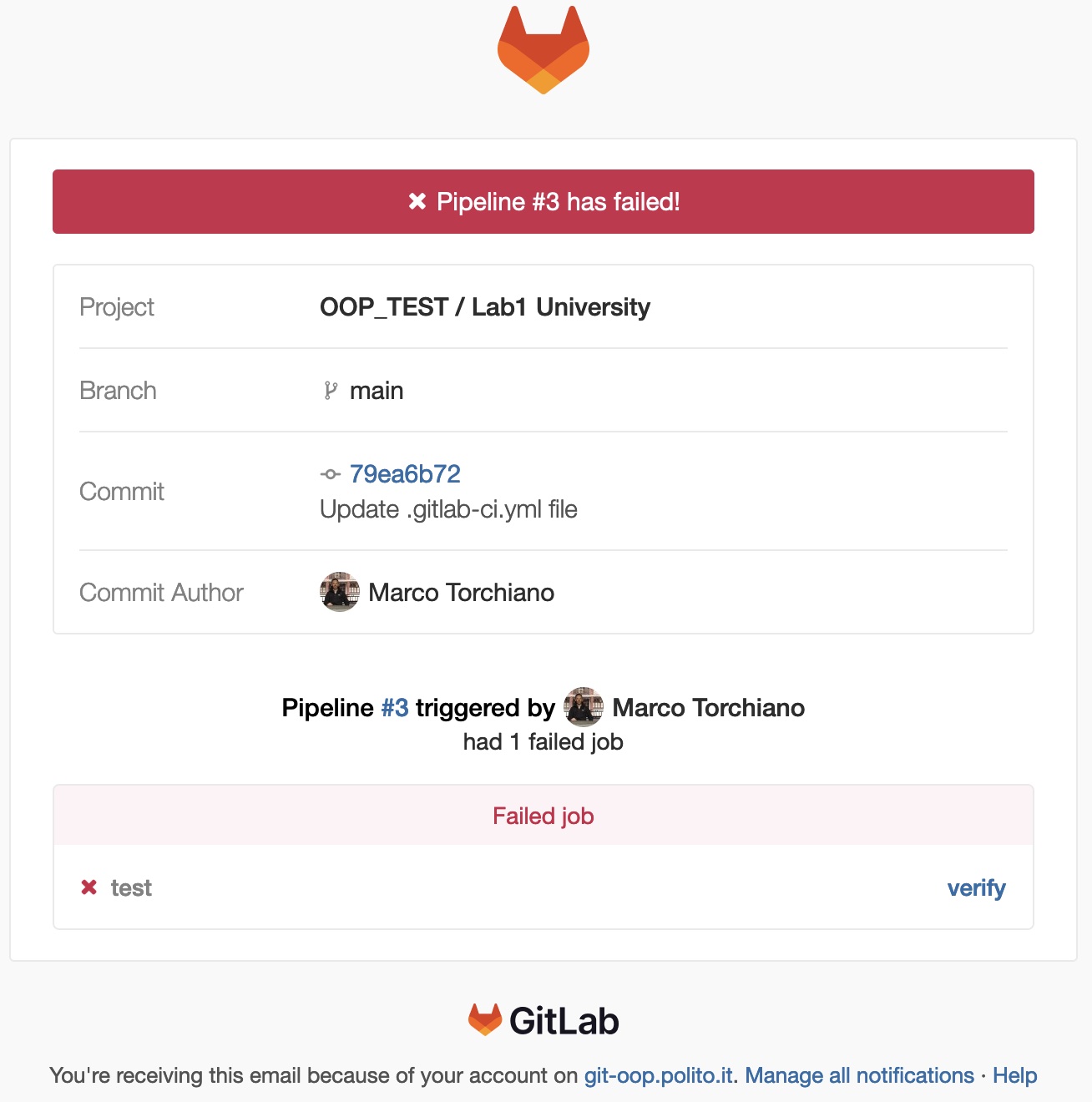
When a pipeline is executed, the GitLab server sends a notification email with the outcome to the repository owner.
It can be a failure, for example:
Or a success, for example:
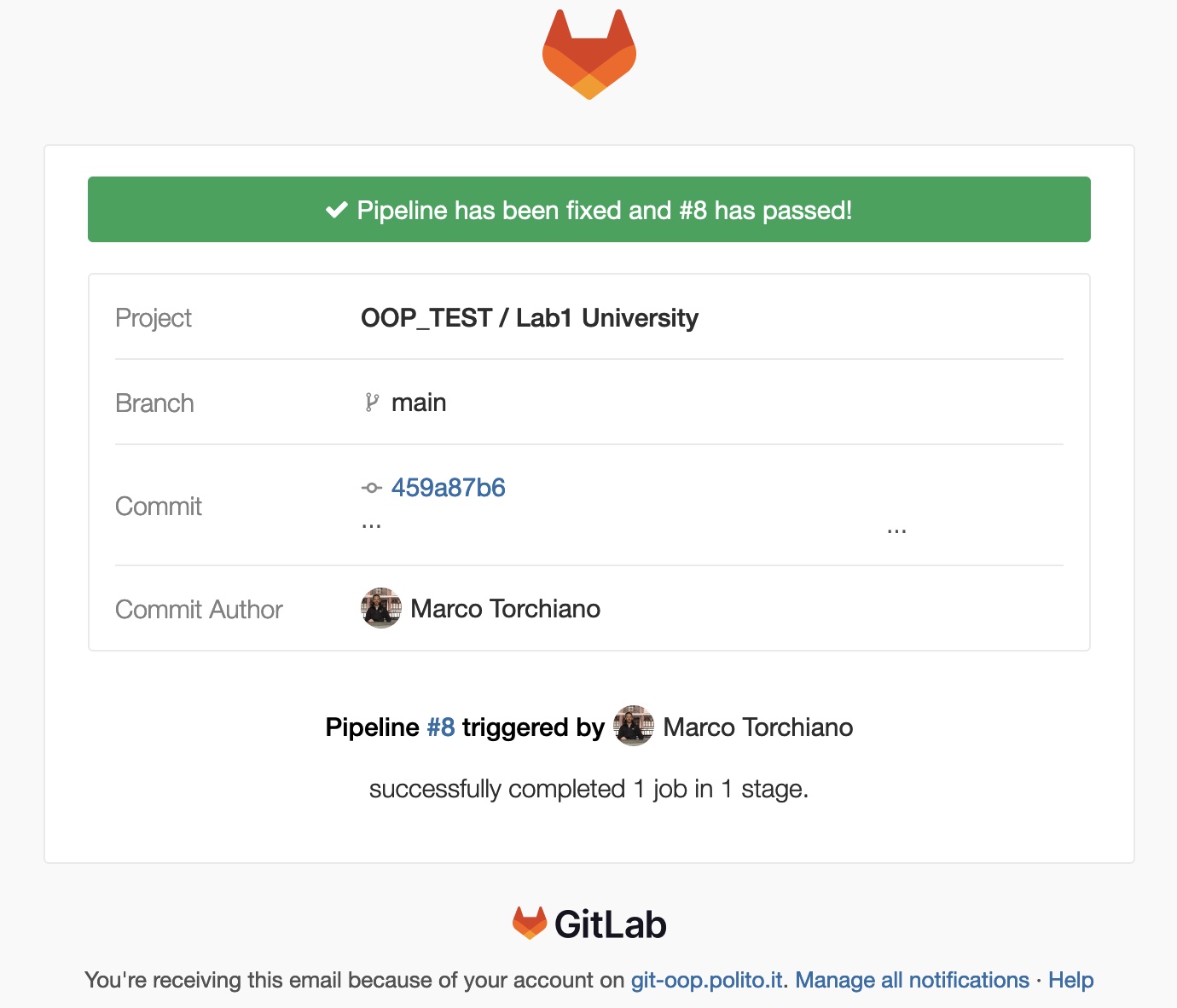
If you click on the pipeline number, e.g. #8, you will access the pipeline visualization online at the GitLab site.
3.2.2.2 Pipeline visualization
You can view details about the outcome of a pipeline in two ways:
- by clicking on the link in the Execution notification email,
- from the project page:
- in the menu on the left margin CI/CD and then Pipelines you see the list of executed pipelines
- by clicking on the
passedorfailedstatus label.
You get to the pipeline view page:
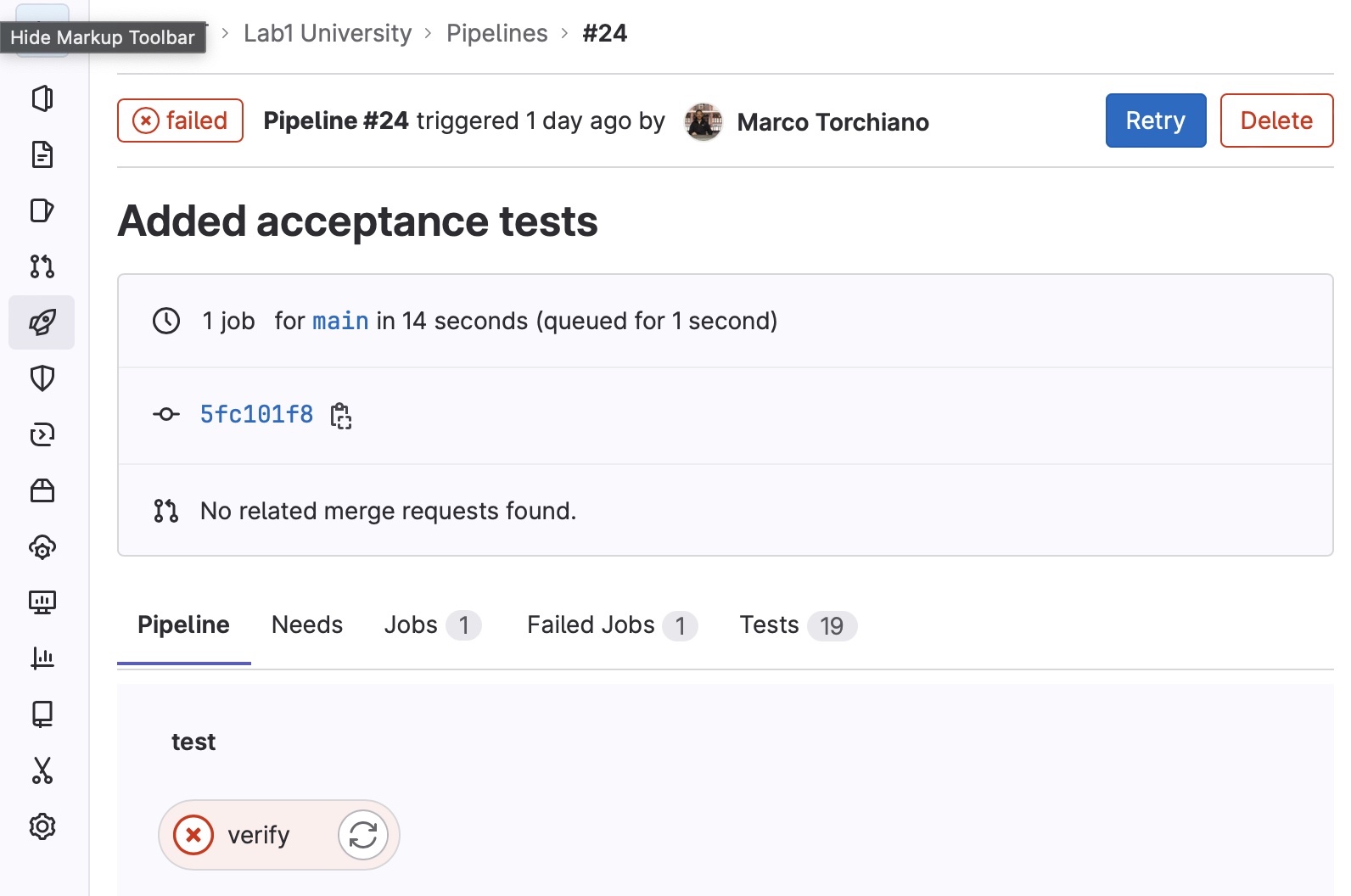
Click on the verify job to see the log of the build and test execution of the project via Maven: useful to understand any errors but difficult to interpret.
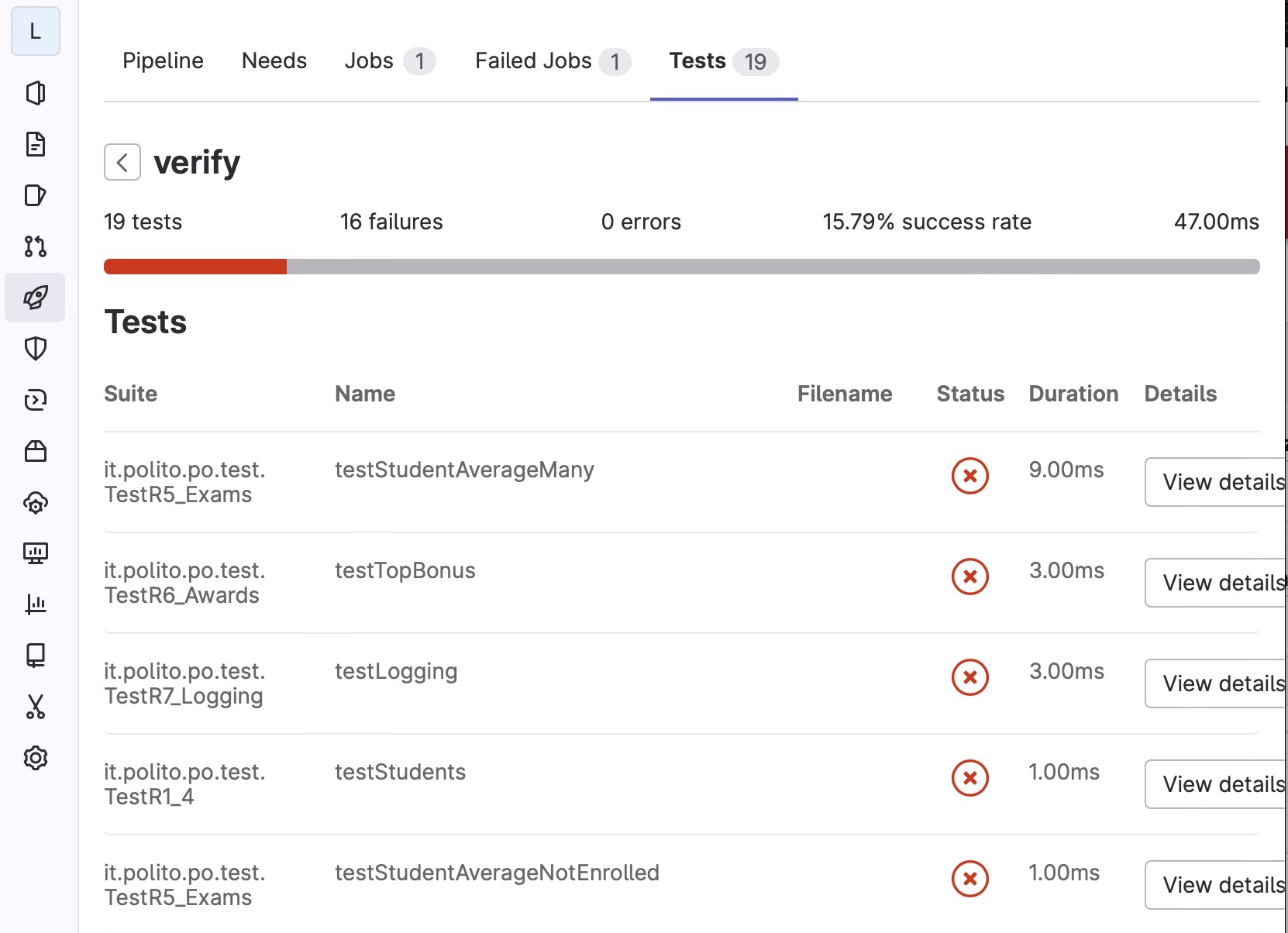
You may want to click on the Tests tab to view the summary of tests run:
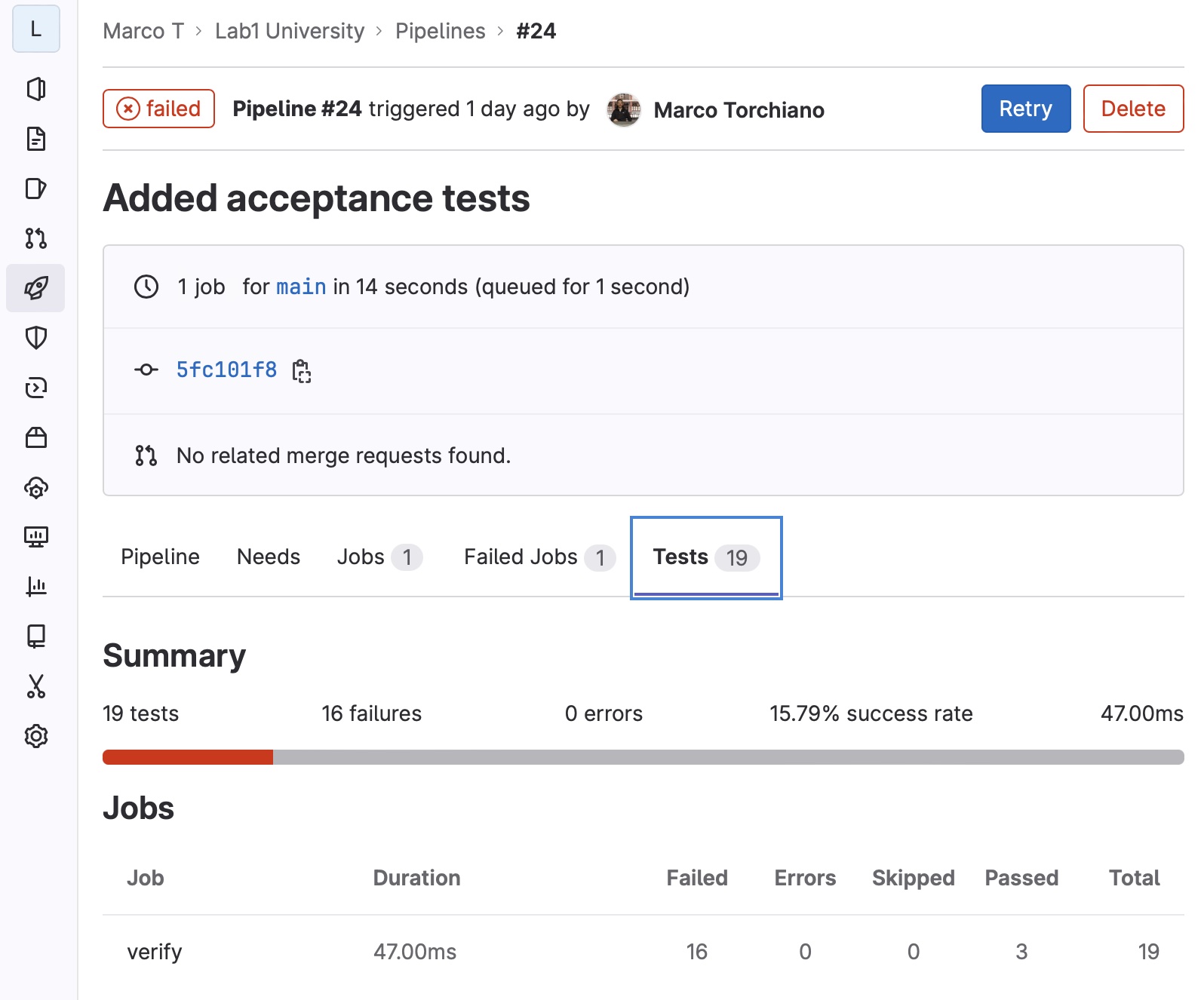
Clicking on the test row shows details with a list of individual test methods and their respective outcome.
3.2.3 Understand failures
A the macro level it is important to understand wether the pipeline passed or failed.
A failing pipeline typically blocks a merge request, e.g. when using the GitFlow approach. Viceversa a passing pipeline gives green light to the merge.
There are two main possible resons for a pipeline failure:
- some tests failing,
- compilation failure.
The typical case is when some tests fail (either due to failures or errors detected by JUnit). Clicking on the Details button shows the detail of the failed (or passed) test:
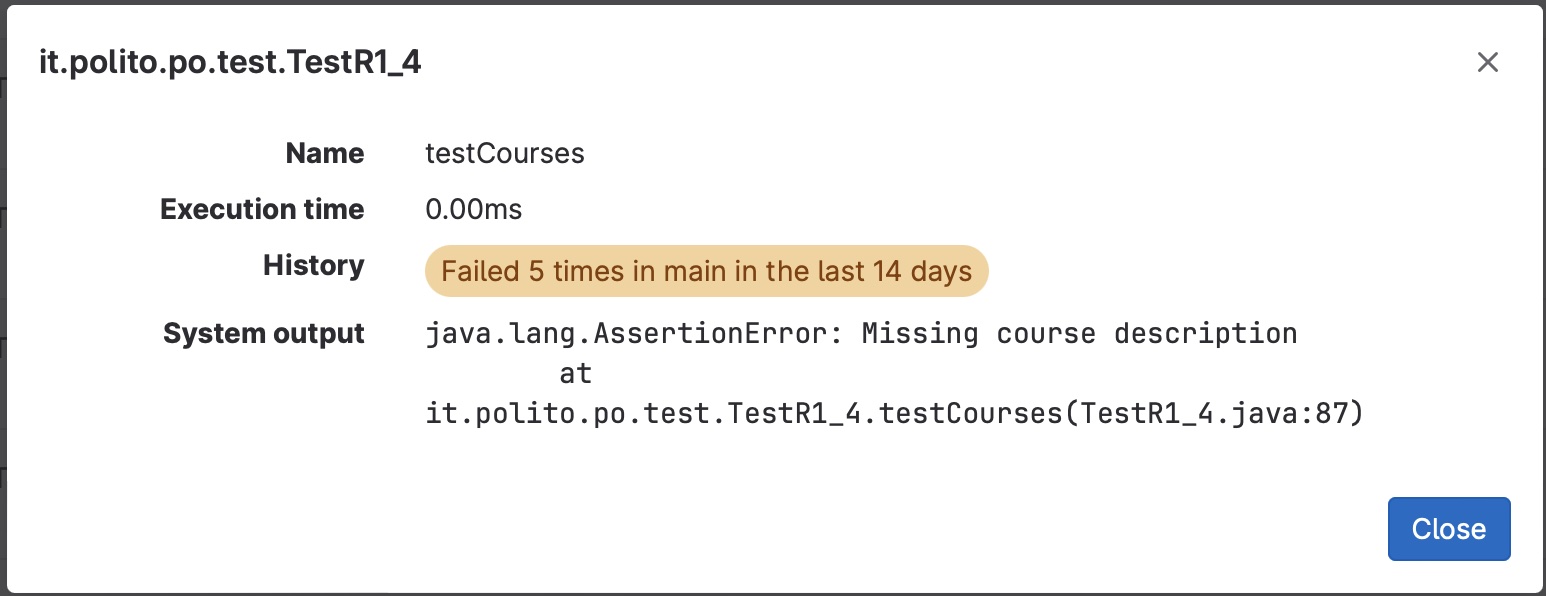
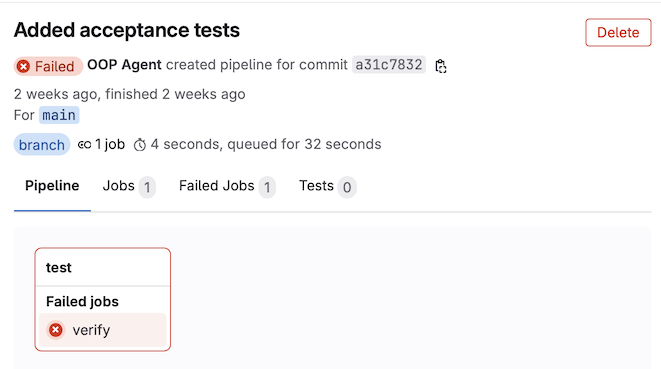
Another case occurs when a compilation error occurs. In this case no test can be executed an therefore tests is 0:
In this case to understand better what is the cause of the failure it is possible to inspect the detailed log of the pipeline. By clicking on the failed job, a window appears with the job details and the full text log of the pipeline execution.
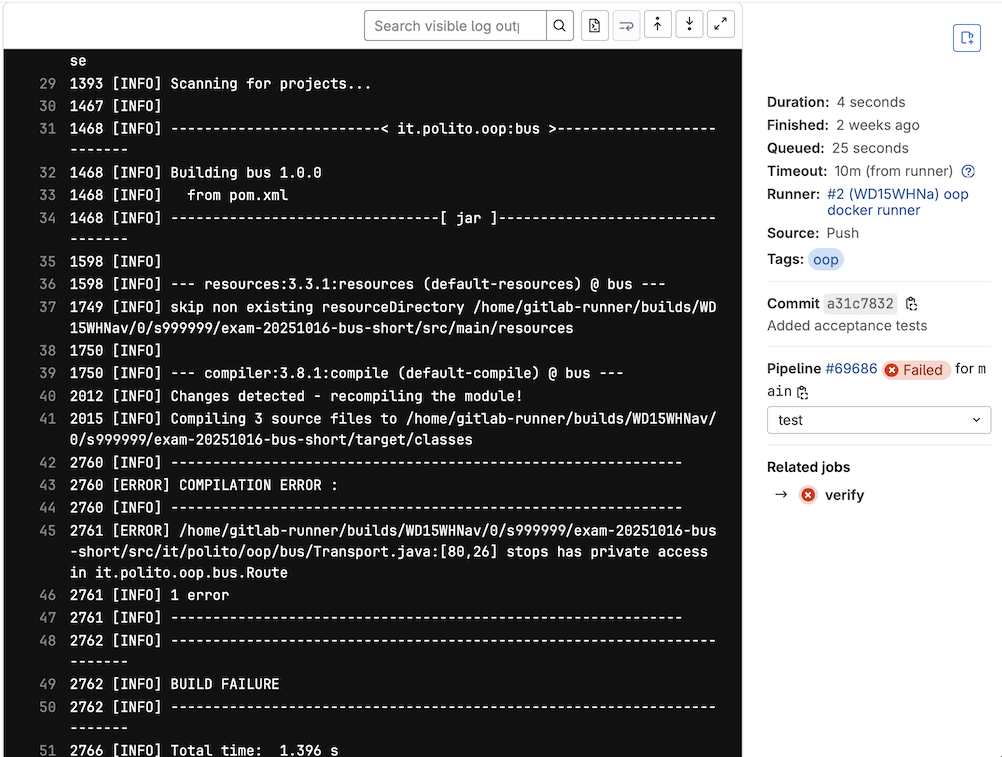
In the sample log shown in the image above, a compilation error is reported.
For example, when building a web application for the Java Enterprise Edition, you would set the dependency on the Servlet API and related Java EE APIs to scope
providedbecause the web container provides those classes.↩︎