2 Configuration Management with Git
Learning objectives
- Understand what is configuration management
- What is Version Control
- What are the main concepts of VC
- Learn how Git can be used for CM
- local repository operations
- remote repository operations
- working with branches
- conflict resolution
- Gitflow collaboration approach
- GitLab operations
2.1 Configuration Management
Software Configuration Management (SCM) is the discipline that applies technical and administrative direction and surveillance in order to(IEEE Standard for Configuration Management in Systems and Software Engineering 2012):
- identify and document the functional and physical characteristics of a configuration item,
- control changes to those characteristics,
- record and report change processing and implementation status, and
- verify compliance with specified requirements
The main issues faced by SCM are:
- What is the history of a document?
This problem is solved with Versioning. - Who can change what and how?
This issue is addressed by Change control. - What is the correct set of documents for a specific need?
This issue concerns Configuration.
2.1.1 Versioning
The problem of managing successive versions of the same file (or more in general item) is quite common in the experience of everybody writing even the simplest document, and of course of any programmer.
The trivial technique of appending fragments to the name of a file does not work even in simple cases. Configuration management frames the problem in general terms and provides the instruments to solve it sistematically.
The generic tem Configuration Item (CI) indicates an aggregation of work products that is treated as a single entity in the configuration management process. A CI (typically a file):
- has an identifying name,
- all its versions are numbered and kept,
- it is possible to retrieve any previous version,
- the author decides to change version number with specific operation (commit).
While the former three charateristics are in common with versioning file systems (e.g. cloud file systems), the last one is peculiar with SCMs: it is the author of the CI that decides when to commit a new version, independently of saving a file.
Any SCM must provide a Version numbering, which is a simple naming scheme that in the simpleste case uses a linear derivation e.g. V1, V2, V3, etc. Ofen the derivation structure is a tree or a network rather than a linear sequence. Version names by themselves are not usually meaningful as long as they fit in sequencing scheme.
The term Configuration is used to indicate a set of CIs, each in a specific version, it is a snapshot of a software system at certain time. It includes several CIs, each in a specific version. The same CI version may appear in different configurations.
A Baseline is a configuration in stable, frozen form. Not all configurations are baselines, some are just temporary states of the system and are not meant to be preserved. The main types of baselines are:
- Development – for internal use
- Product – for delivery
2.1.1.1 Semantic Versioning
A commonly used approach to assign version numbers to products is Semantic Versioning. This approach is usually applied to a whole system – a baseline – and not to individual CIs.
With semantic versioning, product version numbering are based on a pattern that include three components:
MAJOR . MINOR . PATCH
The specific elements are incremented when specific changes occurr in the products:
MAJOR: when you make large (possibly incompatible) API changes,MINOR: when you add functionality in a backwards-compatible manner, andPATCH: when you make backwards-compatible bug fixes.
Sometimes it is possible to add the tag -SNAPSHOT to the tail of the version, e.g. 1.0.0-SNAPSHOT. The SNAPSHOT value refers to the latest code along a development branch, and provides no guarantee the code is stable or unchanging. Conversely, the code in a release version (any version value without the suffix SNAPSHOT) is unchanging.
In other words, a SNAPSHOT version is the development version before the final release version. As such, the SNAPSHOT is older than the corresponding release with the same Major.Minor.Path number.
During the release process, a version of x.y-SNAPSHOT changes to x.y. The release process also increments the development version to x.(y+1)-SNAPSHOT. For example, version 1.0-SNAPSHOT is released as version 1.0, and the new development version is version 1.1-SNAPSHOT.
2.1.2 Change control
A Repository is a collection of all software-related artifacts (CIs) belonging to a system. The term is used also to indicate the location/format in which such a collection is stored.
The repository takes care of storing all the versions of the configuration items and to increment the version count according to the adopted scheme.
There are two fundamental oprations that can be perfomed on a repository:
- Check-out Extraction of CIs from the repository, into the local file system, typically with goal of either changing them or use them (e.g. for compiling).
- Check-in (or Commit)
- Insertion of new versions of CIs in the repository.
Software development team members write code simultaneously and access CIs both reading and commiting new versions. Problems can arise when different developers modify the same CI concurrently, resulting into a conflict.
The most simple implementation of a repository is a common repository (e.g., like a shared folder), where everybody can read/write files, concurrently. The working of a common repository in case of concurrent modification is described in Figure 2.1.

- Pro:
- Very simple to implement and use
- Cons:
- Conflicts are very frequent
- Parallel work is possible but only on distinct CIs
To avoid conflicts and the ensuing risk of losing part of the work, a possible approach is to adopt the lock-modify-unlock (or serialization) strategy. Only one developer at a time can change a given CI. The behavior of such a strategy is described in Figure 2.3.

- Pro:
- Conflicts are impossible
- Cons:
- No parallel work is possible, large delays can be introduce in case of non-responsive developers
- Developers can possibly forget to unlock so blocking the whole team
To solve the limitations of the above model, it si possible to adopt the copy-modify-merge approach. It is possible to make many change in parallel to the same CI, when such concurrent changes occurr, they are detected and a merge is required to reconcile them.

- Pros
- More flexible
- Several developers can work in parallel
- No developer can block others
- Con:
- Requires care to resolve the conflicts
Most modern CSMs work using the copy-modify-merge approach.
2.1.3 Configuration
A Branch is a line of development that exists independently of other lines, yet still shares a common history when looking far enough back in time. A branch always takes life as a copy of some other branch, and moves on from there, generating its own independent history.
Branches may represent different configurations, e.g.,
- by platform,
- by milestone,
- by features.
Branches allow working in isolation form the other branches, especially the main branch where the released product configuration resides. Many new features or fixes can be developed independently and concurrently, each in its own relative branch. When work is complete in a branch, it can be verified and then merged into the main branch.
2.1.4 Repository Architecture
Architectures can be classified along two main axes:
- distribution, and
- data management.
Distribution concerns where repository are located:
Local A simple database that kept all the changes to files under control.
Example product:- RCS
Centralized A single server that contains all the versioned files, and several clients that check out files from that central place,
Example products:- CVS
- SCCS
- PCVS
- Subversion
Distributed Clients fully mirror the repository locally and then perform synchronization.
Example products:- BitKeeper
- Mercurial
- Fossil
- Git
There are two main data Management Models
- Differences: information is kept as a set of files and all the changes made to each file over time, see Figure 2.4.
- Pros: the size of the repository is small
- Cons: to reconstruct the status of a file at a given time all changes must be re-applied in order
- Snapshots: every commit, a picture of what all your files look like at that moment is taken and the system stores a reference to that snapshot. If files have not changed, system stores just a link to the previous identical file, see Figure 2.5.
- Pros: the status of a file at a given time is immediately available
- Cons: the size of the repository is large
2.1.5 Most relevant SCM systems
Comparison table summarizing the Version Control Systems (VCS) you listed — including their year of introduction, architecture type, and data management approach:
| VCS | Year Introduced | Architecture Type | Data Management Approach | Notes |
|---|---|---|---|---|
| SCCS (Source Code Control System) | 1972 | Local | Diff-based | First known VCS; stored file deltas line-by-line. |
| RCS (Revision Control System) | 1982 | Local | Diff-based | Improved SCCS; reverse deltas for faster access to latest version. |
| CVS (Concurrent Versions System) | 1986 | Centralized | Diff-based | Built on RCS; allowed multiple developers and network access. |
| PCVS (Personal Concurrent Versions System) | ~1990s | Centralized / Local | Diff-based | Adapted CVS for single-user or small-team workflows. |
| Subversion (SVN) | 2000 | Centralized | Diff-based | Designed as “better CVS”; supports atomic commits and directories. |
| BitKeeper | 1998 | Distributed | Changeset (diff-based) | Early DVCS; influenced Git’s design; used for Linux kernel development. |
| Mercurial | 2005 | Distributed | Snapshot-based | Similar to Git but simpler; each commit stores a full snapshot with compression. |
| Fossil | 2006 | Distributed | Snapshot-based | Self-contained system with integrated wiki and issue tracking. |
| Git | 2005 | Distributed | Snapshot-based | Uses content-addressable snapshots (SHA-1/2); dominant modern VCS. |
2.2 Version Control with Git
Key characteristics of Git:
- Distributed SCM
- Uses snapshots
- Exploits local operations
- Has integrity checking: everything is check-summed before it is stored and can be reference by that checksum
There are many code hosting web applications and services built on top of git:
- GitHub
- Widely used by OSS projects
- Commercial use is growing
- GitLab
- Largely used
- Based on the open-source GitLab software
- BitBucket
- Commercial
- Codeberg
- open
- uses the Forgejo open-source software
2.2.1 Key concepts
Repository: place where you store all your work It contains every version of your work that has ever existed: - files - directories layout - history
It can be shared by the whole teamCommit: an operation that modifies the repository storing a new version of files: - It is atomically performed - The integrity of the repository is assured - It is mandatory to provide a log message (or comment) to explain the changes made, the message becomes part of the history of the repository
Every commit must be accompanied by a log message (if not provided an editor is automatically opened to enter one).
Conventional Commits is a lightweight convention on top of commit messages. Provides an easy set of rules for creating an explicit commit history. The typical structure of the log messages is:
<type>(<scope>): <subject>
<body>
<footer>
The common change types are
fix: a commit of the type fix patches a bug in your codebase. It is typically linked to a PATCH increment in Semantic Versioning. E.g.,fix(middleware): ensure Range headers adhere more closely to RFC 2616feat: a commit of the type feat introduces a new feature to the codebase It is typically linked to a MINOR increment in Semantic Versioning. E.g,feat: allow provided config object to extend other configsBREAKING CHANGE: a commit that has a footer BREAKING CHANGE:, or appends a !` after the type/scope, introduces a breaking API change. It is typically linked to a MAJOR increment in Semantic Versioning. E.g.,feat!: send an email to the customer when a product is shipped BREAKING CHANGE: `extends` key in config file is now used for extending other config files
The body part is a detailed list of the changes that are included in the commit.
The footer part is used to link the commit to relevant items. A typical usage is to mention the issue number that the changes in the commit address.
Example:
fix(middleware): ensure Range headers adhere more closely to RFC 2616 <1>
Added one new dependency, use `range-parser` (Express dependency) to compute range. <2>
It is more well-tested in the wild.                                                 <2>
Fixes #2310 <3>- the change is a
fixand it affects themiddlewarecomponent, the subject describes in short the change; - the body describes in more detail the change;
- the footer mentions the issue
#2310in the issue-tracking system.
Working Copy: it is a snapshot of the repository where the users can make changes. It is private for a single developer, not shared by the team. It also contains some metadata so that git can keep track of the state of files.
The possible categories of the files in the Git Working Copy are:
- Tracked: files in the working copy (file system) that are monitored by Git
- Untracked: files present in the working copy but whose change are not monitored
- Ignored: files present in the working copy completely ignored by Git Ignoring Files is possible to exclude permanently from version control some files in the project folder. These files must be listed in the
.gitignorefile so that such files or folders will not be considered by Git.
Staging Area: a sort of temporary stocking area. It contains a snapshot of the files that are have been selected to be included in the next commit. Also called “index”.
The possible status of any tracked file in the Working Copy is:
- Not changed: in the original state as in the latest reference commit
- Modified: changed only in the local working copy (file system)
- Added: just added to staged files without any previous version in the repo
- Staged: modified and marked in its current version to be included in the next commit (i.e. included in the Staging Area)

The typical local workflow is:
Modify or create files in your working copy, typically using you favorite IDE,
Stage the files, adding snapshots of them to your staging area
git add /path/to/fileNote the same command adds a previously untracked file or a modified file to the staging area
Commit them, Git takes the files as they are in the staging area and stores that snapshot permanently to your (local) repository.
git commit –-message "feat: requirement R1 implemented"
2.2.2 Interact with remote repository
The local repository is typically used by a single developer on their machine. While a remote (shared) repository is used to keep in sync several local repositories and allow combining the independent work from different developers. The remote repository is often called origin.
There are two main operations to allow synchronizing the local repository with the remote one:
push: pushes (i.e. copies) changesets (set of commits) from a local repository to a remote (shared) one.
git pushpull: updates the local working copy with the latest contents of the remote repository by pulling the remote changesets.
git pullThe pull operations is actually a shortcut for two separate operations:
- fetch: retrives the recent changesets from the remote repository and save them into the local repository
- checkout: copies the latest version of the files from the repository into the working copy

Commit graph: a directed graph maintained by git where nodes are commits and edges link commits to their immediate predessors in history.
Git keeps track of the latest commits that have been synchronized with the remote repository. When a synchronization between repositories is performed (i.e., push, pull, fetch) the changed portion of the graph is exchanged.
HEAD: a pointer to the lastes commit that is the one that is currently checked-out in the working copy. It is the reference to detect changes that can be staged and committed.
When a new commit is created, its predecessor is set to the current HEAD and HEAD points to the latest commit.
Usually HEAD should coincide with the current branch in order to create a linear history

The role of the central (remote) repository is to collect updates from all developers.
git fetchto dowload locally the remote commits, but without alteringHEADor touching the working area
Figure 2.9: Fetching remote updates git merge -ffmerge the remote commit into the local branch movingHEADto the latest commit from the remote and checking out the lastes changes into the working area
Figure 2.10: Mergin remote updates into current branch
The two operations are usually performed in a single step using the git pull command.
2.2.3 Diverging commits
Diverging commits are two (or more) distinct commits that share the same predecessor in the same branch. A divergence usually happen when two developers work concurrently on the same branch. One pushes the new commit to the remote and the other has performed a local commit.

When the remote updates are fetched locally the two commits form a divergence:
In presence of concurrent commits Push fails because there are new changes (commits) in the remote repository and it is impossible to decide:
- which of the new commits should become the new HEAD
- whether commits should be reordered (and how) or combined
Also the Pull command fails because a checkout is not possible due to the divergent commits. Only the Fetch part of Pull succeeds. The resulting local commit graph is divergent:

There are two possible strategy to resolve the ambiguity deriving from diverging commits:
- rebase
- merge
The rebase approach rebases the local HEAD on top of the remote HEAD
git pull --rebase# fetch + rebasegit rebase# only rebase

The merge strategy consists in creating a new merge commit that combines the changes found in the two diverging commits:
-git pull -–no-rebase # fetch+merge

2.2.4 Git Branches
A branch is simply a lightweight movable pointer to a commit. The default branch name is main1.
The current branch is the pointed to by HEAD and it moves forward when a commit is performed in the current branch.
Usually branches are created starting from the current branch:
git branch testingCreates a branch named testing

Figure 2.15: Creating a branch Remember: the
branchcommand does not switch to the new branch, to both create and switch to the branch it is possible to usegit swithc -c testingthe-coption creates the branch if not already present.git checkout testingorgit switch testingMoves the
HEADpointer to the testing branch and possibly updates the files in the working copy (if the branche contains any changes)
Figure 2.16: Switching to branch / Checking out branch
Branches are used to perform work in isolation. When the work in a branch has been completed it must be carried on back into the original branch and integrated with other possible changes occurred in the meantime.
There are three possible strategies:
- Fast-Forward Merge
- Merge
- Rebase
Fast-Forward Merge is possible only if no additional commits have been added to the main branch since the working branch has been created.
- 1
-
The current branch must be
main - 2
- Performs a fast-forward merge
The operation is illustrated in the following Figure 2.17.

Three-way merge. The second option, merge into main can be used in any case when there are new commits in the main after the working branch was created.
- 1
-
The current branch must be
main - 2
-
Merge from
testingintomain(=HEAD). Performs a three-way merge, i.e. it combines the two branches with the common ancestor

Rebase. The third option, rebase onto main and then fast-forward, can be used in any case, like the merge.
- 1
-
Rebasing
testing(=HEAD) ontomain. The commits intestingare modified to incorporate the changes added tomainafter the branching. The branching point is moved to the latest commit inmain. - 2
-
Switching to
main - 3
- Perfomrm a fast-forward (like above)
The operations are illustrated in Figure 2.19

Comparing the final commit graphs resulting from merge (Figure 2.18) vs. rebase (Figure 2.19), the difference between the two operations is clear:
- merge preserves all the previous commits and results into an history that forks and then joins;
- rebase alter the commits to adapt the the new base and linearize the history.
2.2.5 Synchronizaton between branches
It can happen that some changes committed to a branch (e.g., main) should be incorporated also in another branch but the work in the branch is not ready yet.
A typical example is when a critical bug fix has been merged into main, independently from a longer work that is performed in a separate branch. The fixed code should be integrated in the work in progress in order to have a complete and up-to-date code to work on.
In this case it is possible to
rebase the working branch onto
main, like you would do to include the changes tomainbut without performing any fast-forward, this is shown in Figure 2.20;
Figure 2.20: Rebasing a branch on main to incorporate fix merge the
mainbranch into the working branch (the opposite of what done previously), this is shown in Figure 2.21.
Figure 2.21: Merging a fix on main into a branch
Either way, after the working branch has been updated with the lastest changes in the main branch, the work can continue as usual. Eventually the branch will be merged into or rebased onto main when the work is complete.
2.2.6 Conflicts
When a merge commit is created – or when previous commits are altered to perform a rebase –, git automatically combines the changes from the two branches at its best. Typically, when multiple changes are applied concurrently at different places in the file, no conflict is detected and the changes are automatically merged.
An example is shown in Figure 2.22. The main branch contains the changes to Section 1, while branch ch-2 includes the changes to Section 2. A merge can be easily perfomed combining both changes into a single file.
A conflict arises, upon a merge or a rebase (possibly triggered by a pull), when one or more files have undergone changes that cannot be reconciled automatically. Typically overlapping ranges of lines have been modified by two distinct diverging commits which can belong the same branch or distinct branches.
An example of changes that cannot be reconciled automatically is show in Figure 2.23. While the top and bottom lines are kep in both branches, the filling is different in the two branches. The conflicts are highlighted within the files.
The merge or rebase operation is suspended until conflicts are resolved.
The command git merge blt that attempts to perform an automatic merge, fails. The working area then contains a copy of the conflicting file that contains all conflicts:
 Top bread
 <<<<<<< HEAD
 Salami
 Figs
 =======
 Bacon
 Lettuce
 Tomato
 >>>>>>> blt
 Bottom bread
The conflicts must be manually resolved by editing the files, combining the conflicting changes and eventually removing tall the conflict markers ( <<<<<<< and >>>>>>> ). Often and IDE provide a combined view of the two versions and the result to easily resolve the conflicts.
After the conflicts are solved, the conflict-free files must be staged with git add.
And finally the reconciled changes can be commtted:
git commit –-message "merged blt"If the conflict emerged during a rebase opreation, the conflict resolution withing the file is performed in the same way, the only difference is that the rebase operation must be resumed:
git rebase --continue --message "rebased"Rebase vs. Merge:
- Rebase
- creates a linear commit history rewrites the commit history of the rebased branch
- better suited for keeping a cleaner commit history.
- Merge
- combines the commit histories of two branches/threads,
- creates a new merge commit
- better suited for integrating changes from different branches
Merge is generally considered safer than Rebase because it preserves the original commit history and creates a new merge commit, which makes it easier to undo the merge if necessary and understand what happened.
Graph structure: every merge commit increases the connectivity of the commit graph by one. A rebase, by contrast, does not change the connectivity and leads to a more linear history
Recommended personal work procedure
- Perform a Pull before you start coding
- Create a branch for your work and switch to it
- Merge with the main when complete
- In agreement with other developers
- After merge you can potentially remove old unused branches
2.3 Team Collaboration with Git
The operations described in the previous section can be used in different ways to let a team of developers collaborate on a project.
2.3.1 Gitflow
GitFlow is a branching model designed to structure and streamline software development. It defines a clear workflow for managing code versions, ensuring stability, and facilitating collaboration in a team. Introduced by Driessen (2010), it is widely used in a large number of software development projects.
GitFlow is a model, not a strict rulebook. The core concepts remain the same, but companies adapt it. A few common variations are:
- Classic GitFlow (with release branches)
- Simplified GitFlow (no release branches)
- Trunk-Based Development (no dev, everything on main)
The selection of the variant depends on your team’s workflow and deployment strategy.
The advantages of using GitFlow are:
- it separates stable code from ongoing development, reducing risks
- it allows multiple features to be developed in parallel on isolated branches, increasing efficiency
- it ensures quality and stability by integrating testing before release
- it facilitates collaboration using Merge Requests for code review
- it keeps track of releases using tags and structured versioning
It is especially beneficial for projects with periodic releases (e.g., Agile methodologies). Essential for teams working in CI/CD environments, where automated builds and deployments rely on a structured branching model.
In this section we will focus on the trunk-based development variant.
gitGraph
    commit id:" " tag:"Release 1.3.0"
    branch hotfix-12-NPEInLoading
    commit id: "commit code"
    checkout main
    commit id: "  "
    branch feature-17-login
    commit id:"commit code "
    checkout hotfix-12-NPEInLoading
    commit id:"add tests and open MR"
    commit id:"code review"
    checkout feature-17-login
    commit id:"add tests + open MR2"
    checkout main
    merge hotfix-12-NPEInLoading tag:"Release 1.3.1"
    checkout feature-17-login
    commit id:"code review "
    checkout main
    merge feature-17-login  tag:"Release 1.4.0"
Trunk-Based Development is a simple and widely used workflow in modern software development. It is based on having a single persistent branch (main) which always contains production-ready code. All new development happens in ephemeral short-lived branches, created for individual features or fixes. Ephemeral branches are regularly merged back into the main branch, after testing and code reviewing.
The main consequences of this approach are:
- the
mainbranch is always stable and ready to release, - the
mainconsists of a clear, simple, and linear history, - long-lived or multiple persistent branches are avoided, thus reducing complexity,
- it is posible to work on each feature or fix in an isolated temporary branch,
- allows parallel development on multiple features without interference,
- encourages frequent integration to reduce merge conflicts,
- enable collaboration through Merge Requests and Code Reviews.
Trunk-based developments uses different type of branches:
- Persistent branches: These branches must remain stable and serve as reference points for the production process. Typically the
mainbranch. Contains the latest stable and production-ready code. Only approved, tested code is merged here. Releases are marked using tags, such as v1.0.0, typically using semantic versioning.
Automated CI/CD pipelines trigger builds and deployments when code is merged. - Ephemeral branches: avoid commits on persistent branches. The use of ephemeral branches isolates every single development in its branch avoiding any impact on other branches. The use of ephemeral branches allows to create merge requests, Enable code reviews before merging. Maintain clean and structured code. Ensure that only validated changes reach persistent branches. Different types of ephemeral branches:
feature: used to develop new functionalities before merging into main. Branch Naming Convention:
feature/ID-descriptionorID-feat-description, where ID is the GitLab ID of the issue associated to the new feature. Workflow:- Branch is created from dev
- Code is developed, including unit/integration tests
- Merge Request is opened for team review and approval
- Once approved, the branch is merged back into main and deleted(*)
hotfix: intended to fix critical bugs found in production (main). Branch Naming Convention:
hotfix/ID-bugDescriptionorID-fix-bugDescriptionwhere ID is the GitLab ID of the issue associated to the bug. Workflow:- Branch is created from main
- Bug is fixed and tested
- Merge Request is opened for team review and approval
- Once approved, the branch is merged back into main and deleted(*)
- A new tag and release is created on main branch
Best practices
- Keep main stable
- Only merge approved code
- Use meaningful Merge Requests
- Provide clear descriptions and references, add images if GUI is impacted
- Follow a strict naming convention for branches
- Delete ephemeral branches after merging
2.3.2 Code reviews
A Code Review is the process of examining someone else’s code, usually before it is merged into the main branch. It is an essential step in collaborative development that helps ensure code quality, correctness, and consistency.
Code Reviews are often performed through Merge Requests, where team members can read the changes, leave comments, and suggest improvements. This process improves not only the code, but also helps developers learn from each other, share knowledge, and maintain a clean, understandable codebase.
Code review has several goals:
- Help catch bugs before code is merged
- Improve code readability and maintainability
- Ensure adherence to coding standards
- Promote knowledge sharing within the team
- Encourage communication and constructive feedback
A team should define clear coding standards and conventions defining naming, formatting, file structure. Review policies help decide what must be checked in every review: tests, documentation, error handling.
Checklists can be created to ensure consistency and completeness. For instance:
- Does it include tests?
- Are all public methods documented?
These rules help reviewers know what to focus on. They also help authors write code that meets expectations from the start
During the code review there are two roles:
- Author: the person who wrote the code and opened the Merge Request
- Reviewer: the person who reviews the code and provides feedback
Both roles are essential to ensure quality and shared responsibility. Communication between author and reviewer should be respectful and focused on the code. Code reviews are a form of professional communication, therefore respectful behavior helps avoid conflicts and misunderstandings. Even written feedback can be easily misinterpreted without proper tone so special care should be devote to adopting a proper one. Reviews should improve the code, not judge the person! A good environment encourages learning, trust and collaboration.
Etiquette makes the process more effective and enjoyable for everyone
Etiquette for the Author:
- Be open to feedback and don’t take it personally
- Clarify your choices respectfully if questioned
- Fix issues quickly and explain your changes when replying
- Resolve discussions only when feedback has been addressed
- Thank reviewers for their time and input
Etiquette for the Reviewer:
- Focus on the code, not the person
- Be respectful and constructive in your comments
- Ask questions instead of making demands, e.g., “Why not use X here?” instead of “This is wrong”
- Suggest improvements clearly and politely
- Avoid minor comments that don’t affect clarity or correctness
- Approve only when the code meets the agreed standards
2.4 Gitlab Features

2.4.1 Issues
GitLab Issues are a simple way to track tasks, bugs, and new features. They help teams organize work, assign responsibilities, and document decisions.
Creating an Issue allows developers to describe what needs to be done before writing code. Issues can be linked to branches and Merge Requests, making collaboration clear and traceable.
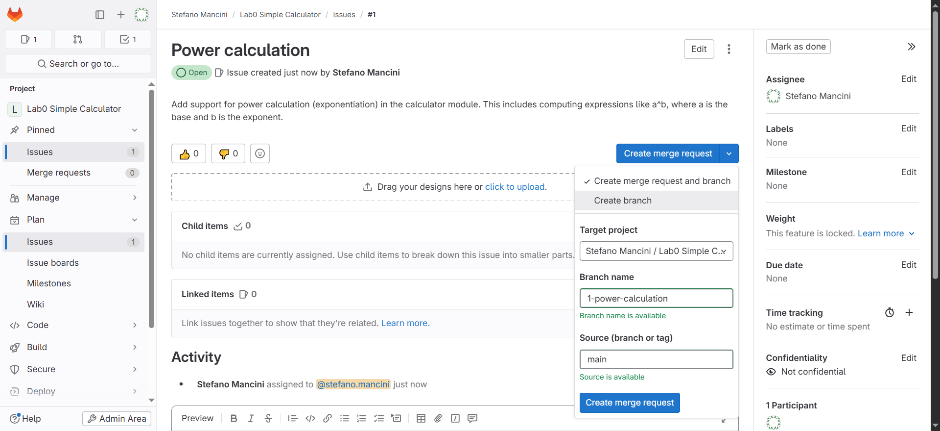
GitLab allows to create a branch and a Merge Request directly from the Issue; the branch is named correctly and clearly and the MR is automatically opened from the new branch, user chooses the destination branch (typically main). The issue, branch, and MR are automatically connected ,and when the MR is merged, the issue is closed automatically
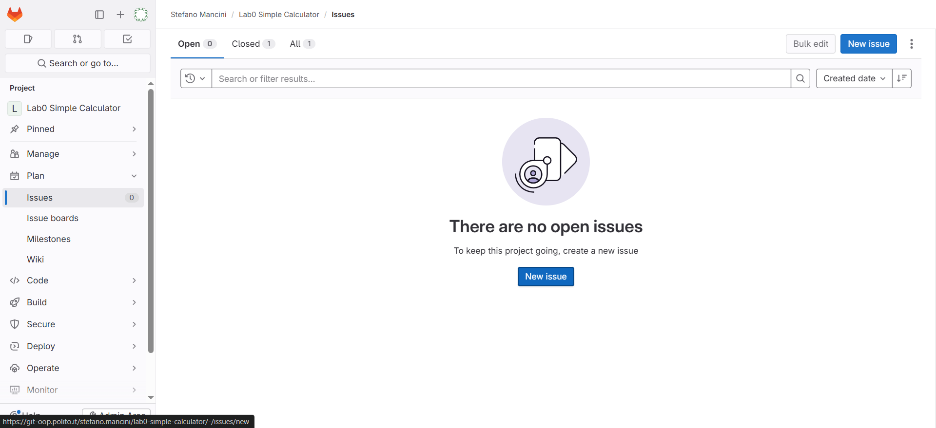
Creating a GitLab issue
- Go in the “Plan” section in the repository
- Choose the “Issues” subsection in the “Plan” tab
- Click “New Issue”
- Add a clear title and descriptive explanation
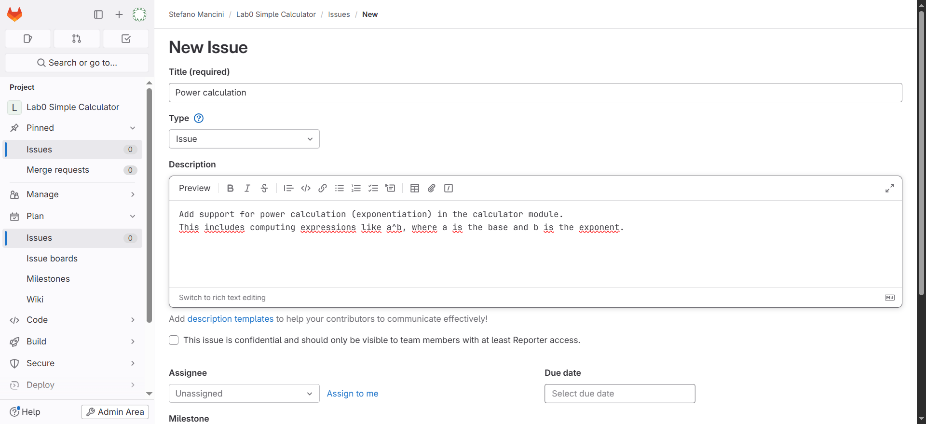
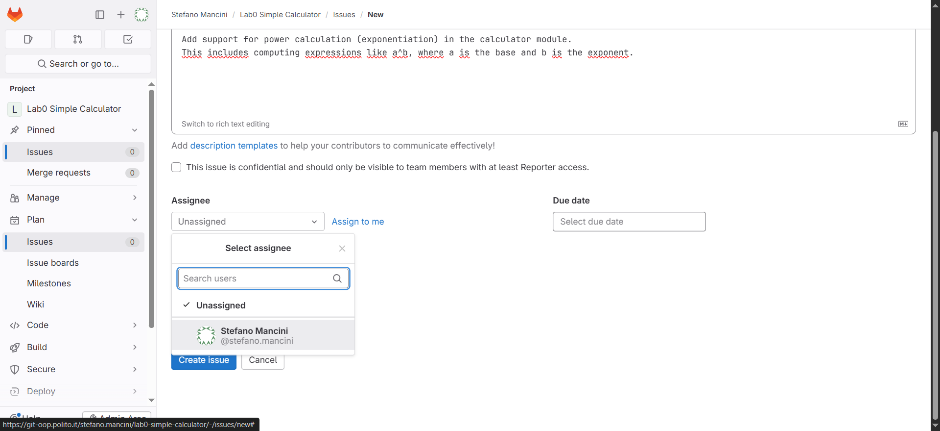
The GitLab issue can be furhter configured by providing the following (optional) details:
- Assignee: it can be assigned to yourself or a teammate,
- Labels: various labels can be added to categorize the task,
- Due date: a deadline for resolving the issue,
- Milestone: the issue can be linked to a milestone in the development plan.
2.4.2 Merge requests
A Merge Request (MR) is a GitLab feature (GitHub calls them Pull Request) that allows developers to propose changes made in one branch to be merged into another.
It is a collaborative tool that lets the team review the code before it becomes part of the main project, discuss changes and suggest improvements and track what has been modified and why.
Merge Request status allow understaning the stage of the work:
- draft is the initial state when work is still being performed,
- open is the state when work is done and reviewing can start,
- approved is the state after the code review and possible further changes, when the work related to the MR is considered complete,
- merged after the work, contained in a branch has been merged into the main branch.
When the MR is merged, it automatically closes the related issue.
A Merge Request is usually created created from an existing issue. Although it can also be created manually from an existing branch. If the description of the merge request mentions an issue it is linked to that issue and merge will close it. For instance, adding “Closes #7” in the description allows the automatic closing of the issue 7.
Creating a Merge Request from an issue takes the user directly to the Merge Request configuration step. This operation creates a branch too, and opens the Merge Request automatically from the newly created branch towards the default branch.
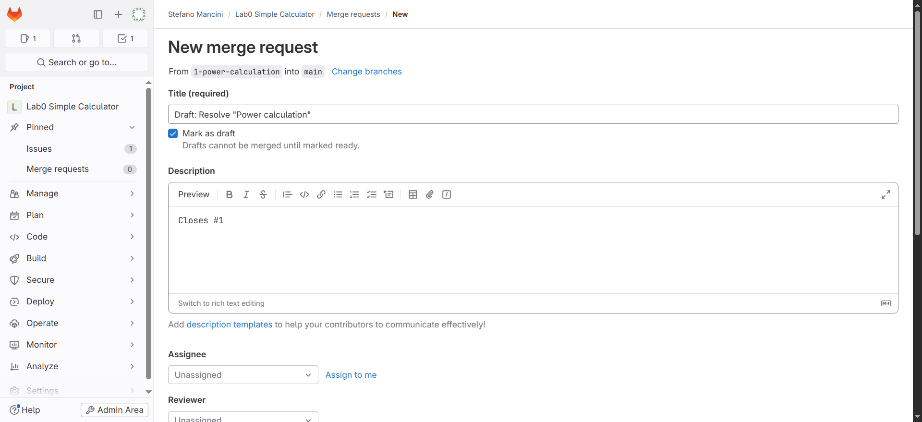
The Merge Request can be configured by providing a few details:
- An assignee can be selected to indicate who is responsible for the work
- One or more reviewers can be added to request feedback
- A milestone can be assigned to link the MR to a broader objective
- Labels can be used to categorize or prioritize the MR
- The MR can be set to automatically delete the source branch after merging
- A squash option can be enabled to combine all commits into a single one when merging
- The MR can be marked as draft to indicate it is not ready for review yet
2.4.3 Code reviews
GitLab offers two main ways to review code in a Merge Request:
- adding inline comments and discussions
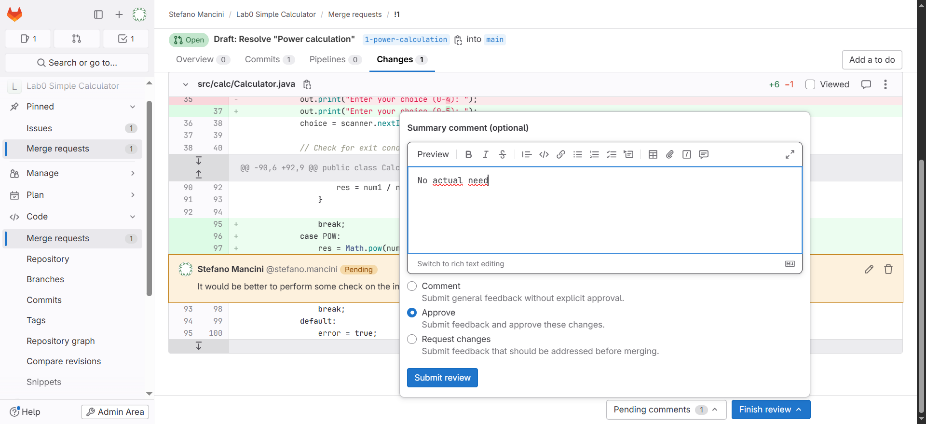
- submitting a structured review with approval
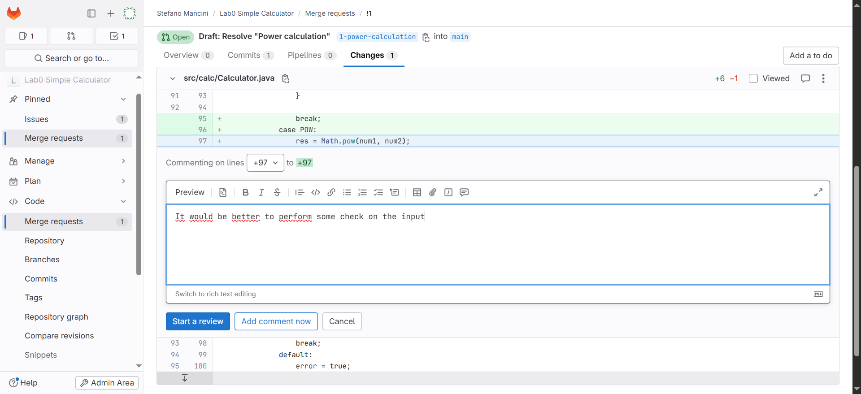
Inline comments are simple and flexible, and can be used at any time.
A formal review groups feedback and provides a clear approval status.
Submitting a review is optional: a Merge Request can still be merged even without a formal review. This feature is useful for teams that want a more structured review process.
The Merge Request interface shows the differences between the two branches. Code changes can be reviewed line by line. Inline comments can be added to specific lines of code. Discussion threads can be started to ask for clarification or suggest improvements. This enables a structured and collaborative code review process.
Inline comments can be added directly on specific lines in the “Changes” tab. Comments are useful for asking questions, suggesting improvements, or clarifying choices. Each comment can be marked as a discussion, allowing replies and resolutions. Discussions stay open until explicitly resolved. Comments can be posted immediately, without starting a full review.
GitLab allows reviewers to submit a formal review after examining the code. The review can include multiple comments grouped together.
At the end of the review, the reviewer can choose to:
- Approve the merge request
- Request changes with feedback
- Leave comments without approval
A full review provides a clear review status for the author and the team
2.4.4 MR merge
When an MR is finally approved and gets merged into the destination branch. The changes from the source branch are integrated into the target branch.
If enabled, the source branch is automatically deleted to keep the repository clean2 If selected, all commits are squashed into a single commit before merging3
The Merge Request status is updated to “Merged”- If the MR references an Issue (e.g., “Closes #12”), the Issue is automatically closed. The code in the target branch now includes the approved changes and is ready for further development or release.
The default branch used to be called
masteruntil a few years ago. The developers’ community felt that the term master had negative connotation therefore in 2020 it was changed intomain. Keep in maind that you could find older repositories still using that name.↩︎in the team projects of the course, commits must be preserved as they are, so not squashed and the branch not deleted. This is the default configuration for such projects.↩︎
in the team projects of the course, commits must be preserved as they are, so not squashed and the branch not deleted. This is the default configuration for such projects.↩︎